
MOV to MP4 converter
Convert MOV to MP4 on Mac without codec setup
Turn iPhone, camera, and QuickTime MOV files into MP4 so they play cleanly in more apps, upload faster, and share with fewer compatibility problems.
FreemacOS 15.0+Local-firstBuilt-in FFmpeg
Quick answer
The short version
- Convert MOV files to MP4 locally on Mac.
- Useful for iPhone videos, camera clips, and QuickTime recordings.
- Built-in FFmpeg means no Terminal install and no PATH setup.
Why it matters
A practical guide to MOV to MP4 Mac
Built around real Mac workflows: chat attachments, camera clips, screen recordings, batch folders, and local files you do not want to upload.
Why convert MOV to MP4
MOV is common on Apple devices, but MP4 is usually easier to share across browsers, Android devices, chat apps, learning platforms, and content tools. Converting MOV to MP4 gives you a more portable file while keeping the workflow simple.
No separate FFmpeg install
FFmpeg is powerful, but many people do not want to install it, update PATH variables, or memorize command flags. This app ships its encoder inside the app, so conversion works from the interface.
Convert and compress in the same workflow
A MOV file often needs two things: a more compatible format and a smaller size. Instead of converting first and compressing later, handle both in one local workflow.
How it works
Three steps, no extra setup
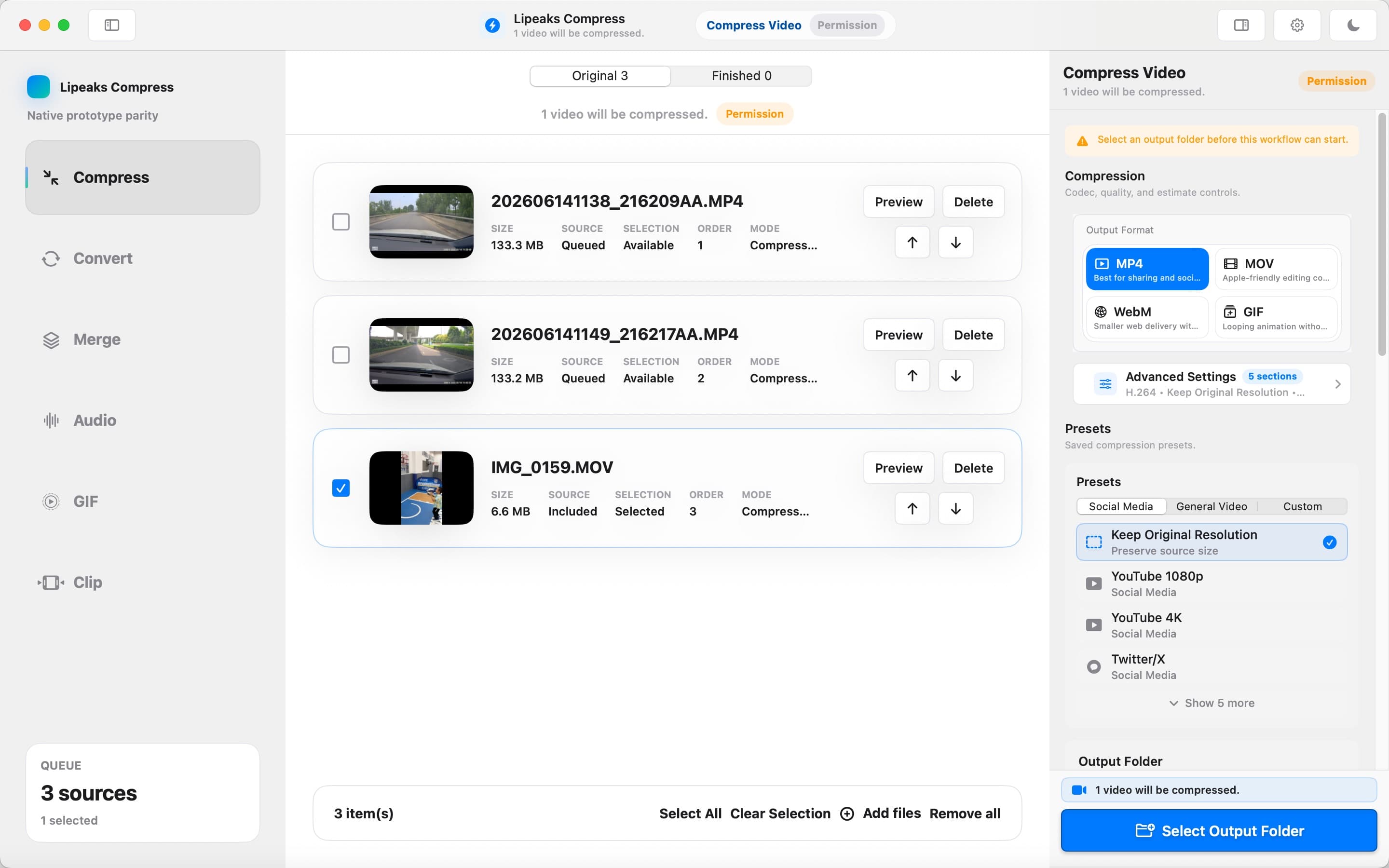
Video Compressor - GIF MP4 keeps the workflow local and focused. Add files, choose the job, export results.
- 1
Import the MOV file
Add a MOV from your iPhone, camera roll, screen recorder, or QuickTime export.
- 2
Choose MP4 output
Select MP4 as the target format and choose the size or quality setting you want.
- 3
Save the converted video
Export the MP4 to your chosen folder and use it in upload forms, messages, presentations, or social posts.
Related workflows
Keep exploring video tools for Mac
FAQ
Common questions
How do I convert MOV to MP4 on Mac?
Add your MOV file to Video Compressor - GIF MP4, choose MP4 as the output format, and export the converted file locally on your Mac.
Why is MP4 better for sharing than MOV?
MP4 is supported by more devices, browsers, upload forms, and chat apps. MOV is common on Apple devices but can be less convenient outside Apple workflows.
Do I need QuickTime Pro or FFmpeg commands?
No. The app includes the encoder and provides a Mac interface, so you do not need QuickTime Pro or manual FFmpeg commands.
Ready to work with video locally on your Mac?
Download Video Compressor - GIF MP4 for free. Compress, convert, batch process, and automate without uploading your files.
Download for Mac