
Video compression for Mac
Compress video on Mac without uploading your files
Shrink MP4, MOV, and WebM videos locally on your Mac. Video Compressor - GIF MP4 gives you quality presets, batch queues, folder watching, and built-in FFmpeg without making you open Terminal.
FreemacOS 15.0+Local-firstBuilt-in FFmpeg
Quick answer
The short version
- Compress MP4, MOV, and WebM files locally on macOS 15.0 or later.
- Use presets when you want a quick result, or batch whole folders when you have many files.
- No uploads, no browser limits, no separate FFmpeg setup.
Why it matters
A practical guide to compress video on Mac
Built around real Mac workflows: chat attachments, camera clips, screen recordings, batch folders, and local files you do not want to upload.
Why video files get too large on Mac
Screen recordings, iPhone clips, 4K exports, and camera MOV files can grow quickly. A short video may be hundreds of megabytes when it keeps a high bitrate, large resolution, or extra audio tracks you do not need for sharing.
- Email and chat apps often reject large attachments.
- Cloud uploads take longer when every clip keeps its original bitrate.
- A local compressor helps you reduce file size before sharing, archiving, or posting.
Local compression is better for private footage
Online compressors are convenient, but they require uploading the original video first. For work recordings, customer demos, family footage, or unreleased content, local processing is the safer default. The file stays on your Mac from input to output.
Batch compression saves the most time
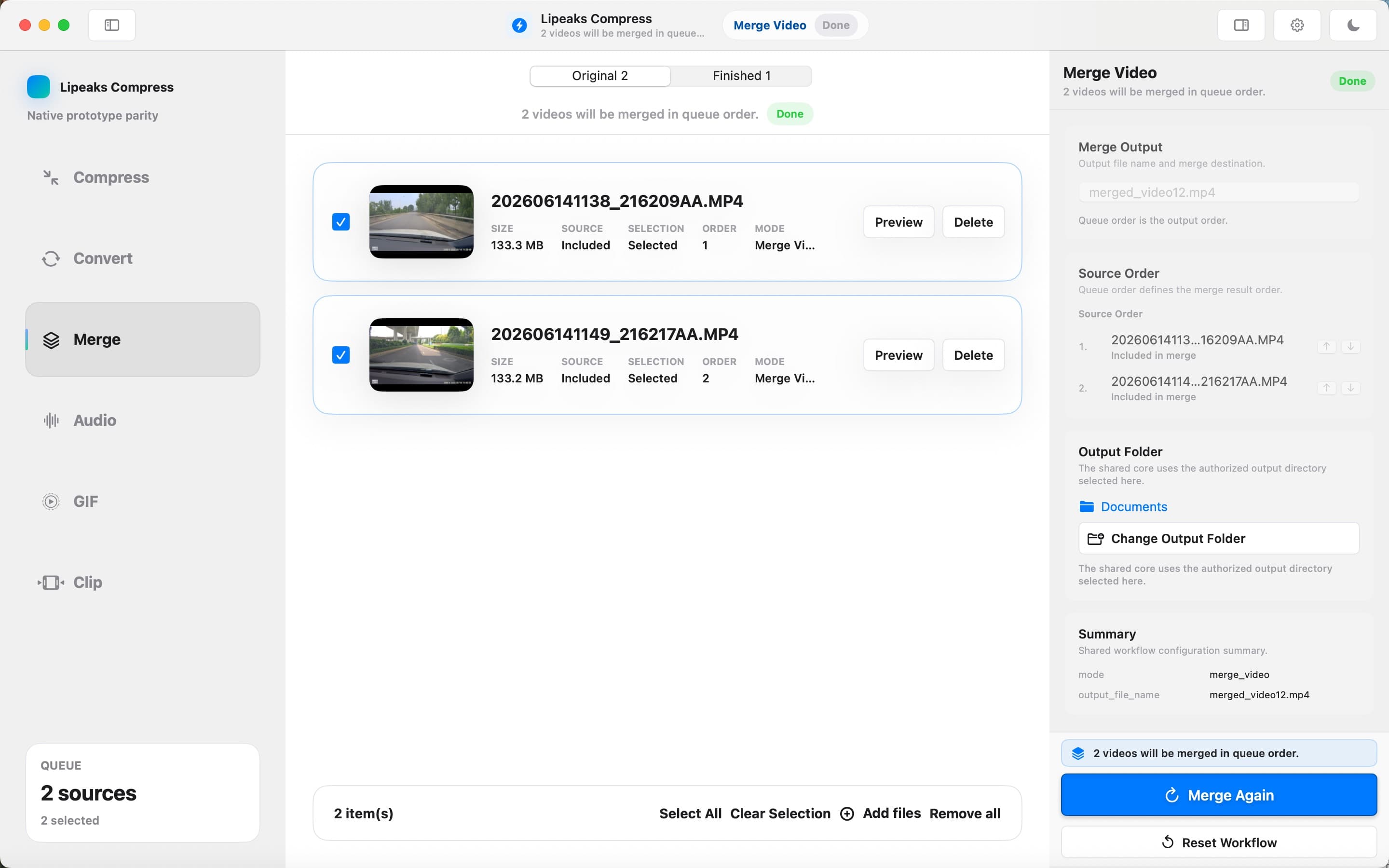
Compressing one clip is useful. Compressing a whole folder is where the workflow pays off. Drop a set of videos into a queue, choose the output folder, and let the app process them while you do something else.
How it works
Three steps, no extra setup
Video Compressor - GIF MP4 keeps the workflow local and focused. Add files, choose the job, export results.
- 1
Add your video files
Drag MP4, MOV, or WebM files into the app. You can start with one large file or select a folder of clips.
- 2
Choose a compression preset
Pick the size and quality balance you want. For chat and email, choose a smaller output. For archiving, keep more visible quality.
- 3
Export locally
The app writes compressed files to your output folder. Your original files are not uploaded anywhere.
Related workflows
Keep exploring video tools for Mac
FAQ
Common questions
What is the easiest way to compress video on Mac?
The easiest way is to use a local Mac video compressor: add an MP4, MOV, or WebM file, choose a compression preset, and export the smaller file locally without uploading it.
Can I compress multiple videos at once?
Yes. Video Compressor - GIF MP4 supports batch workflows, so you can process multiple files or watch a folder for new videos.
Will compression reduce video quality?
Any real compression changes the file, but quality presets help you choose the balance between smaller size and visible quality.
Ready to work with video locally on your Mac?
Download Video Compressor - GIF MP4 for free. Compress, convert, batch process, and automate without uploading your files.
Download for Mac